Browse CSS
Images
Fit and position images within responsive frames.
Image fitting
| Class | Behavior |
|---|---|
object-cover | object-fit:cover |
object-contain | object-fit:contain |
object-fill | object-fit:fill |
object-none | object-fit:none |
object-scale-down | object-fit:scale-down |
Image position
| Class | Behavior |
|---|---|
object-center | object-position:center |
object-top | object-position:top |
object-bottom | object-position:bottom |
object-left | object-position:left |
object-right | object-position:right |
object-left-top | object-position:left top |
object-left-bottom | object-position:left bottom |
object-right-top | object-position:right top |
object-right-bottom | object-position:right bottom |
Set both dimensions, or combine a width with an aspect ratio, to give fitting a visible effect. Cover fills the frame and crops; contain preserves the entire image with unused space. Fill stretches the image and can distort it. None keeps its intrinsic size; scale-down chooses the smaller result of none and contain.
All classes support sm:, md:, and lg: variants. Position names describe physical edges of the image, independent of text direction. Use meaningful alternative text for content images and alt="" for decorative images.
Cover and contain
The same square illustration sits in identical wide frames. Cover crops the image; contain keeps the whole portrait visible.
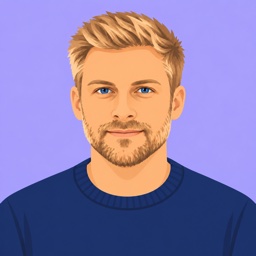
<div class="grid grid-cols-1 md:grid-cols-2 gap-md">
  <figure class="panel stack gap-sm m-0">
    <figcaption>
      object-cover
    </figcaption>
    <img
      class="block w-full h-auto aspect-video object-cover"
      src="/images/avatar-alex-illustrated.jpg"
      width="256"
      height="256"
      alt="Illustrated portrait of a blonde man"
      loading="lazy"
    >
  </figure>
  <figure class="panel stack gap-sm m-0">
    <figcaption>
      object-contain
    </figcaption>
    <img
      class="block w-full h-auto aspect-video object-contain"
      src="/images/avatar-alex-illustrated.jpg"
      width="256"
      height="256"
      alt="Illustrated portrait of a blonde man"
      loading="lazy"
    >
  </figure>
</div>
Choose the focal point
Top and bottom alignment change which part of a cropped image stays visible.
<div class="grid grid-cols-1 md:grid-cols-2 gap-md">
  <figure class="panel stack gap-sm m-0">
    <figcaption>
      object-top
    </figcaption>
    <img
      class="block w-full h-auto aspect-video object-cover object-top"
      src="/images/avatar-alex-illustrated.jpg"
      width="256"
      height="256"
      alt="Illustrated portrait of a blonde man"
      loading="lazy"
    >
  </figure>
  <figure class="panel stack gap-sm m-0">
    <figcaption>
      object-bottom
    </figcaption>
    <img
      class="block w-full h-auto aspect-video object-cover object-bottom"
      src="/images/avatar-alex-illustrated.jpg"
      width="256"
      height="256"
      alt="Illustrated portrait of a blonde man"
      loading="lazy"
    >
  </figure>
</div>
Adapt the crop
Keep the full portrait on mobile. From 48rem, fill the wide frame and position the crop at the top.
<figure class="panel stack gap-sm max-w-md m-0">
  <figcaption>
    Project owner
  </figcaption>
  <img
    class="block w-full h-auto aspect-video object-contain md:object-cover md:object-top"
    src="/images/avatar-alex-illustrated.jpg"
    width="256"
    height="256"
    alt="Illustrated portrait of a blonde man"
    loading="lazy"
  >
</figure>